App Store keyword research that tells you what to target
See how much demand a keyword has, how hard it is to rank for, and whether it fits your app. Then turn the list into store text that respects Apple's limits.
Demand, difficulty and fit on one row
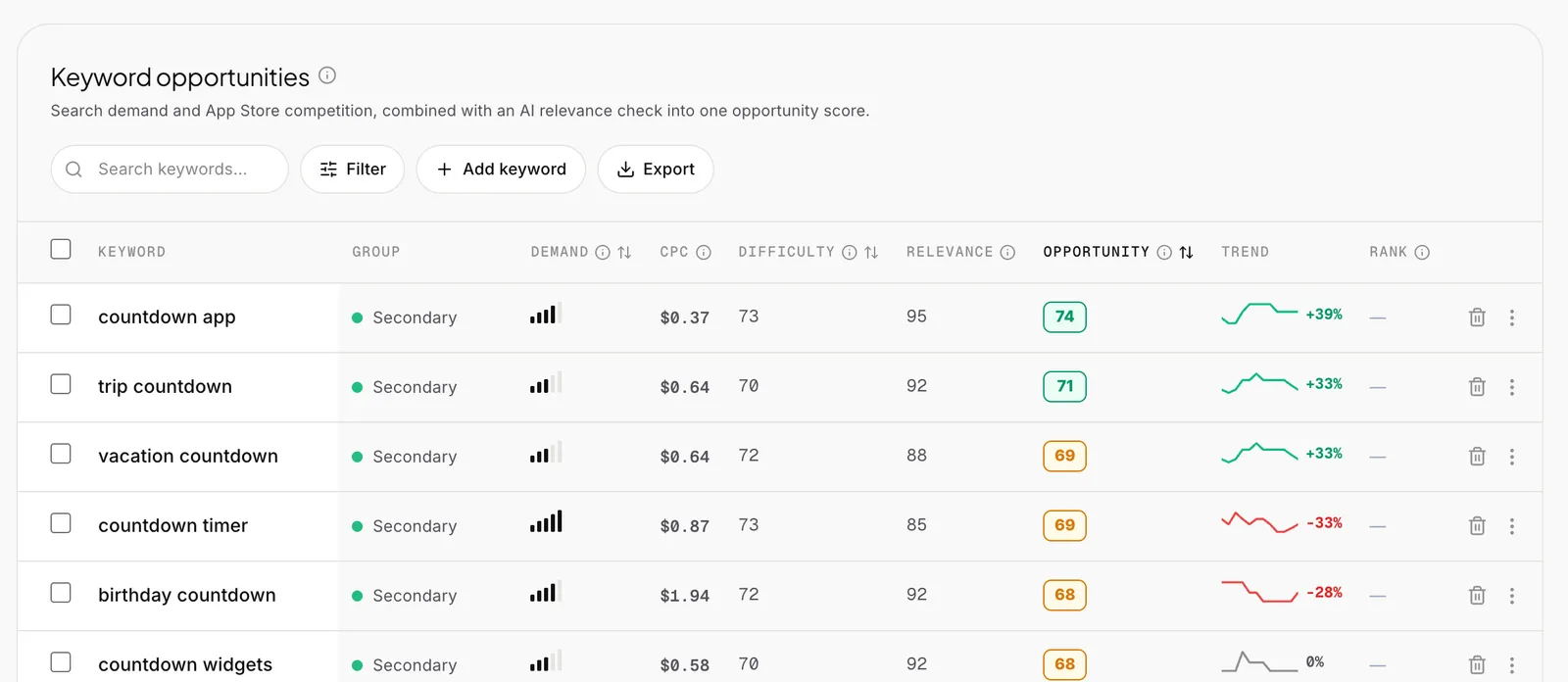
Every keyword gets one opportunity score, built from search demand, App Store competition and an AI check of how relevant it is to your app.
- Search demand with a 12-month trend
- Difficulty based on the apps that rank today
- Filter, add your own terms and export
From a keyword list to store text
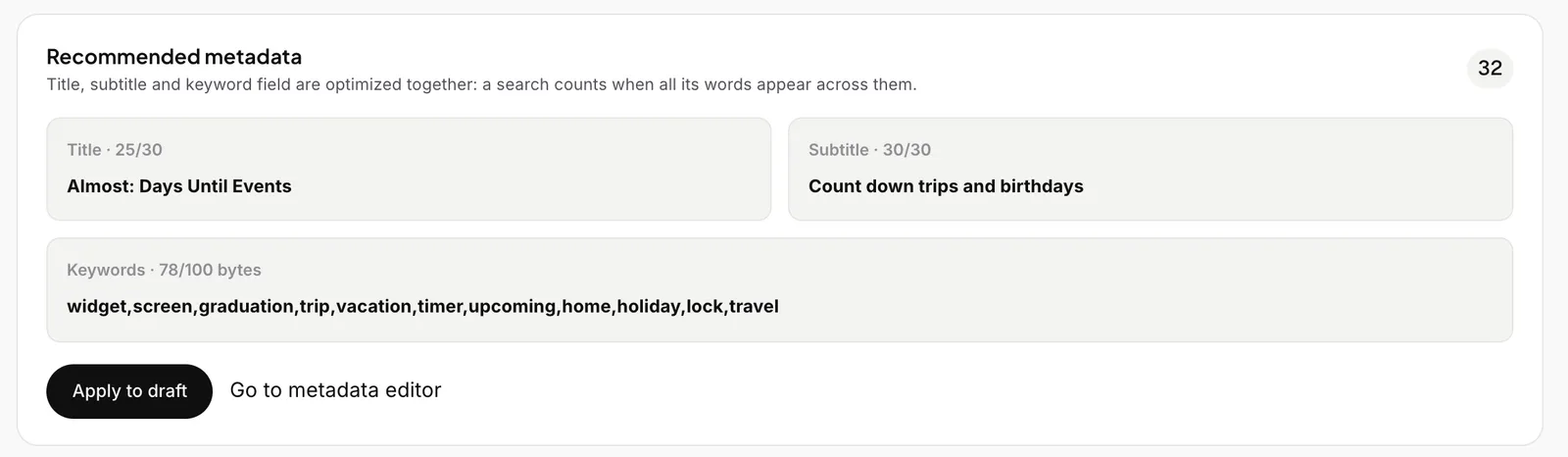
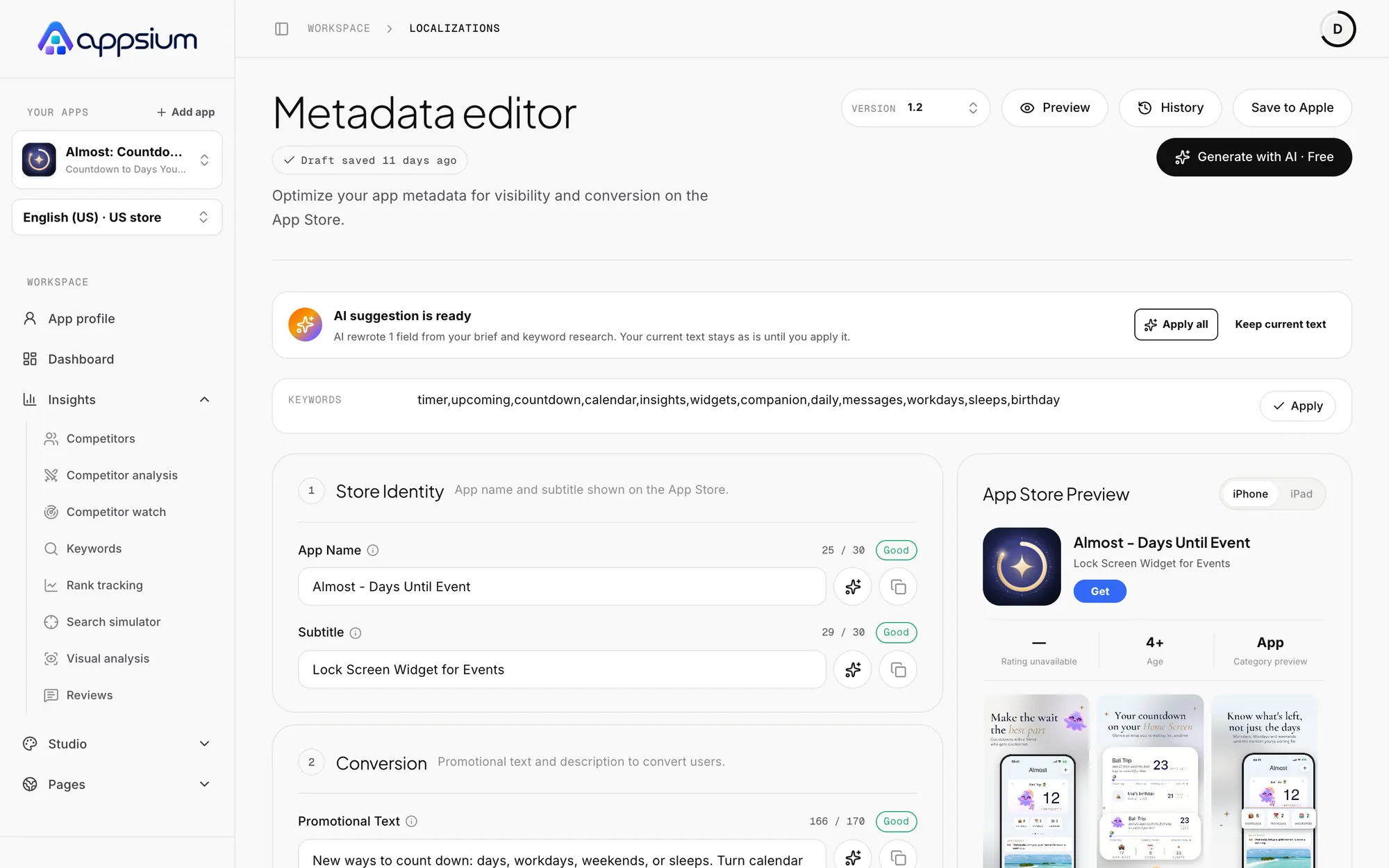
Appsium plans the title, subtitle and keyword field together, because a search counts when all of its words appear across them. Apply the result to a draft in one click.
- Your title stays unless a change is clearly better
- Natural phrases, not lists of words
- Words Apple ignores are left out
Spot what you are missing
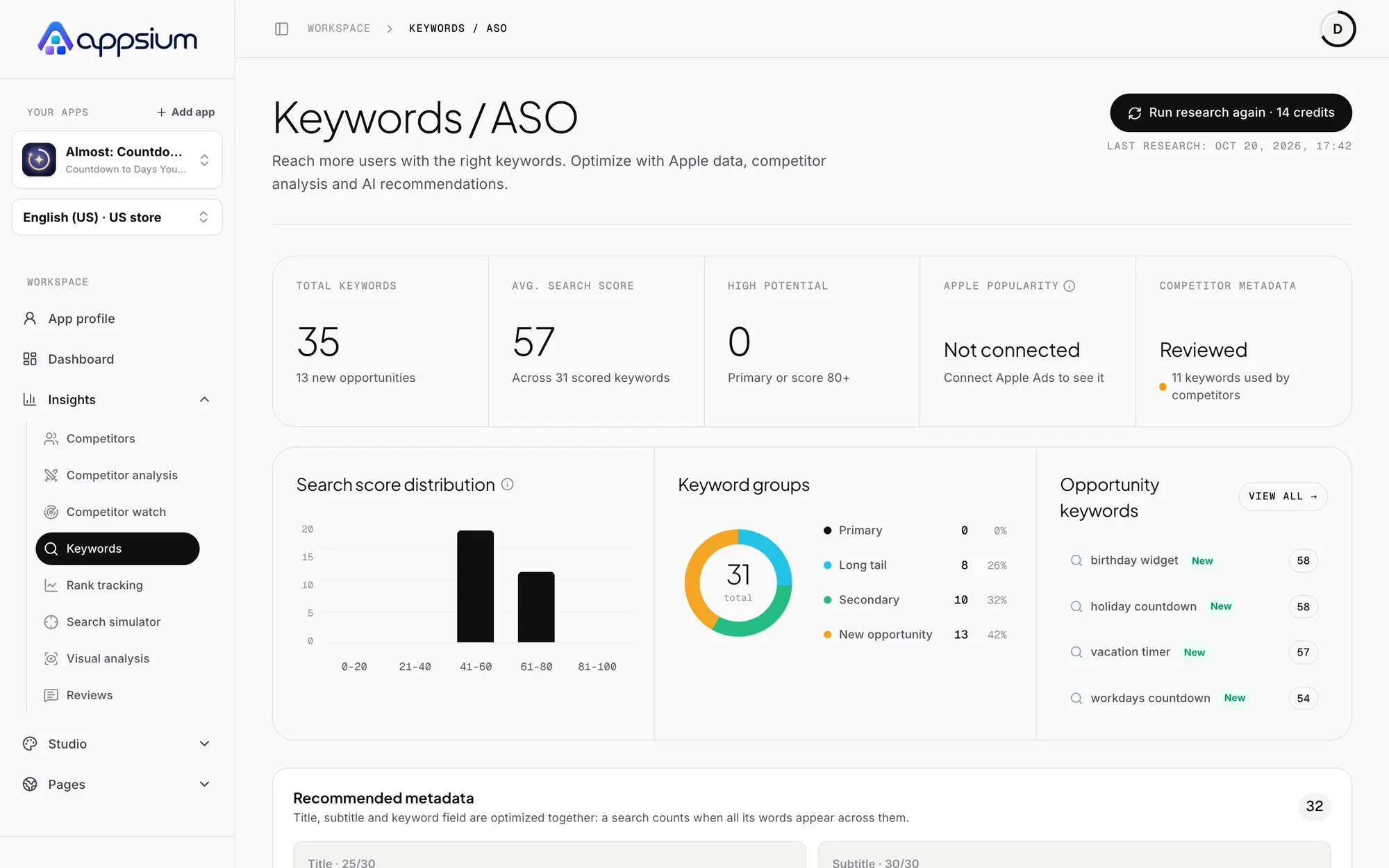
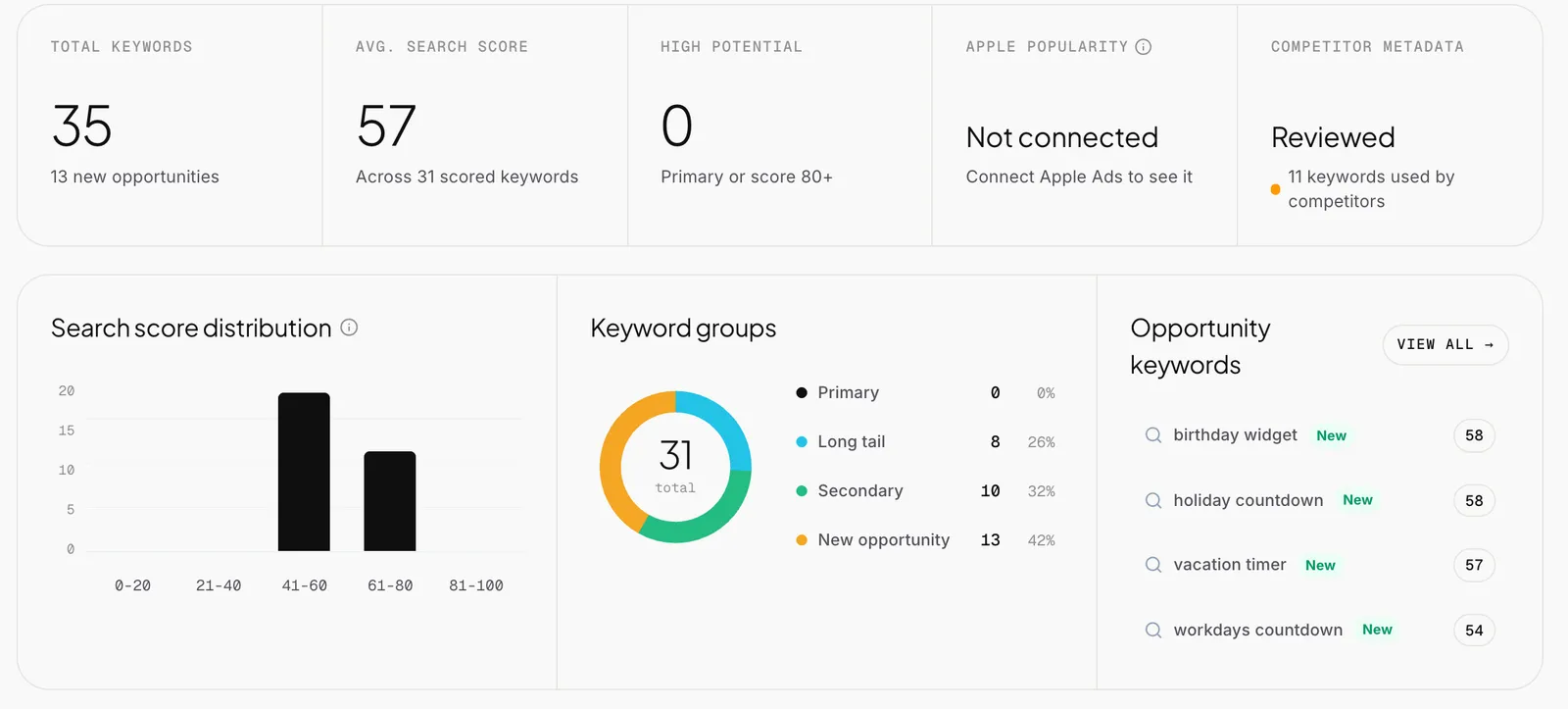
Opportunity keywords show new terms worth adding, and keyword groups show whether your list leans too far toward a few broad words. Check any search in the simulator to see the results a user would get in that country.
- New opportunities flagged in the list
- Primary, secondary and long tail groups
- Search simulator for each storefront
Frequently asked questions
Is this real App Store search volume?
No. Apple does not publish search volume, so every tool estimates it. Demand in Appsium shows how much people search for a term on the web, difficulty comes from the apps ranking in the top 10 on the App Store, and connecting Apple Ads adds Apple's own popularity score.
Do I need App Store Connect to research keywords?
No. You can add any app by name or App Store link and run research without sharing a key. Connect App Store Connect when you want to send the result back to Apple.
Can I see the keyword field of a competitor?
No. Apple keeps the keyword field private, so any tool that shows one is guessing. Appsium works from what is public: titles, subtitles, descriptions and search results.
Which markets are covered?
Keyword data covers 18 markets. Research follows the language and storefront you pick for your app in the sidebar.
Find the keywords your app should own.
Start with a free ASO Score for your store page, then run keyword research on your first app.
Works with
Metadata and localization
Title, subtitle, keywords, promo text and description per language, always inside Apple's limits.

Rank tracking
Daily App Store positions for your keywords in the top 200, with 30 days of history.
Competitor analysis
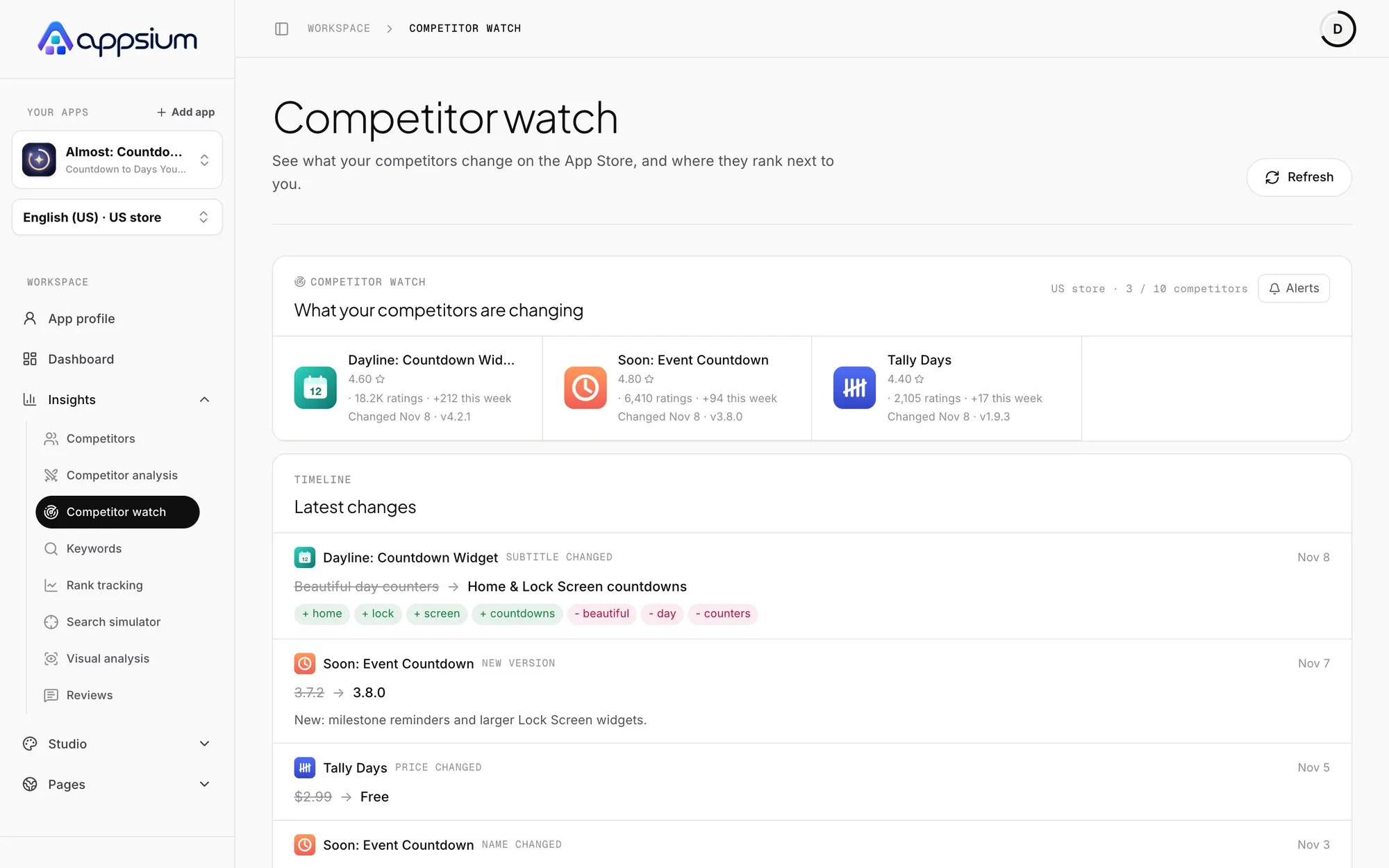
Daily changes to rival store pages, their ranks next to yours, and an AI read of how to beat them.
Learn the craft

How to use the App Store keyword field (all 100 characters of it)
Format, rules and strategy for the App Store keyword field: commas without spaces, plurals, no repeats, no trademarks, and how words combine across fields.

How to write an App Store title and subtitle that rank and convert
Write a 30-character App Store name and subtitle that rank and convert: the brand + keyword pattern, examples by category and the mistakes that cost downloads.

App Store Optimization (ASO): the complete guide for iOS developers
Learn how App Store search ranks apps, which metadata fields matter, how ratings and screenshots drive conversion, and a 30-day ASO plan for your iOS app.